Passthrough Setup
Setting up Passthrough
Step 1: Create a Scene
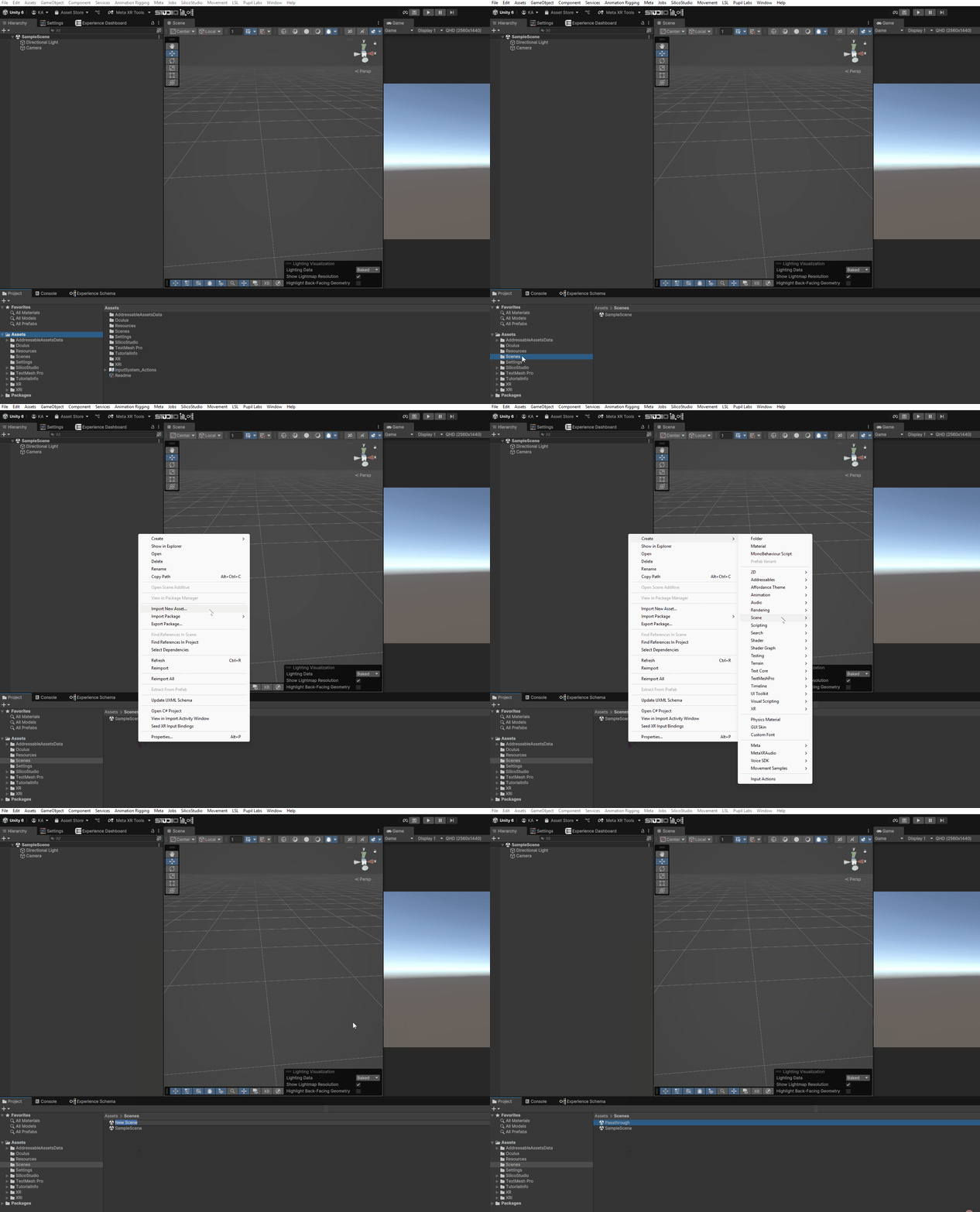
In Unity, open the Project window in the bottom-left corner. Navigate to the Assets folder, then open the Scenes folder. Right-click inside the Scenes folder and select Create | Scene. Give your Scene a clear name to indicate it is for passthrough, such as [ExperienceName]_Passthrough.
Passthrough Settings
info
The following setting definitions are sourced from Unity's official documentation, as of February 17, 2025.
Layer Settings
Passthrough Skybox
A skybox in Unity creates a distant background to simulate the sky and horizon, enhancing scene immersion. Imagine it as a 3D sphere that surrounds participants in the environment. By enabling passthrough on the skybox, you control whether the environment's surroundings are displayed using the headset's cameras for a real-world view or remain virtual.
Placement
Placement controls whether the passthrough layer appears behind or infront of other content in the scene. .
- None:
Does not place the passthrough layer. The participant will still see all the elements in the scene, but everything else around will be black. - Underlay:
Places the passthrough layer under all other elements in the scene. This is the default placement of Passthrough, it allows participants to see and interact with elements while seeing the real environment around them. - Overlay:
Places the passthrough layer on top of all other elements in the scene, hiding them from the participant.
Opacity
Set the opacity/transparency of the passthrough image.
Composition Depth
Composition Depth defines the order of the layers in composition. The layer with smaller Composition Depth would be composited in the front of the layer with larger Composition Depth. The default value is zero.
Color Settings
Colour Map
Colour Map provides a number of different techniques to map each input color to a different output color:
- None:
Display passthrough images unchanged. - Color Adjustment:
Adjust the image's brightness, contrast, and saturation. Saturation adjustment only has an effect on devices that support color passthrough. - Grayscale:
Adjust brightness and contrast and apply a posterization effect to grayscale passthrough images. Color passthrough images are converted to grayscale first if this option is chosen. - Grayscale To Color:
Colorize grayscale passthrough images, adjust brightness and contrast, and apply a posterization effect. Color passthrough images are converted to grayscale first if this option is chosen. - Color LUT:
Apply a color look-up table (LUT), which maps each RGB input color into an arbitrary RGB(A) in the passthrough image stream. - Blended Color LUTs:
Apply the blend between two color LUTs to the passthrough image stream. This option can be used to smoothly transition between two color LUTs.
Edge Colour
Choose the colour to apply on all edges of the environment, rendered in passthrough.
Contrast
Modify the contrast of Passthrough. Valid range: [-1, 1]. A value of 0 means that contrast is left unchanged.
Saturation
Modify the saturation of Passthrough. Valid range: [-1, 1]. A value of 0 means that saturation is left unchanged.
Brightness
Modify the brightness of Passthrough. Valid range: [-1, 1]. A value of 0 means that brightness is left unchanged.